Setting up the drive in Windows 2000 / XP / Vista

Connect your Ex-Pro/Sietec Picture2Storage P2S/EX205K to the USB port of your PC or notebook. Access the Disk Management (Start - Control Panel - Computer Management - Disk Management). All physical disk drives are listed here. Please select your USB disk, click with the right mouse button and select "New Partition" and then a "Primary Partition". Enter the desired partition size and have a drive letter to your hard drive without reformatting it. Do not format the device on Windows2000 / XP /Vista disk management, because windows can not format correctly disk drives to FAT32 standards over 32Gb! Ensure you use to format the included "SeitecFormatTool" on the CD. If you have problems with formatting.
Formatting the hard drive with the SeitecFormatTool:

! Note!
To use the SeitecFormatTool to, please activate the "Automatic Updates" in your Windows system. The tool requires the NET.Framework Extension 2.0 (Version 2.0) from Microsoft, which you can download free from the Microsoft website. Without this extension, the SeitecFormatTool can not work.

! Note!
The built-in hard drive should be regularly formatted, to avoid potential Datenveruste too!

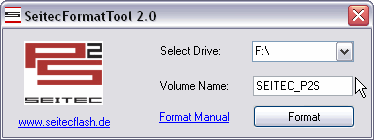
1. Insert the supplied CD into the CDROM drive of your PC and start the program "SeitecFormatTool2.exe"with a double click.

Alternatively, the program also here Download.

If you Seitec Format Tool have downloaded from our website, you first unpack the zip archive to any folder on your hard drive and then call the "SeitecFormatTool2.exe"by double-clicking on.
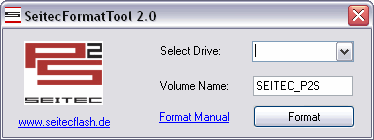
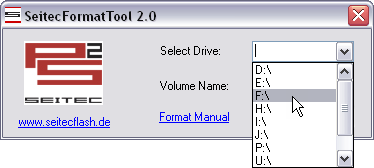
2. Choose from the pull-down menu to your Seitec P2S from corresponding drive letter.
3. In this field you can create a name for the disk. If you type anything, it defaults to the name "SEITEC_P2S specified".
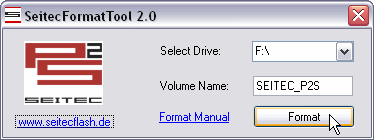
4. Click on the button "format"
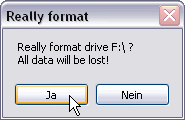
5. Confirm by clicking on the "Yes" button.

NOTE: All data is deleted by formatting the hard drive! Please list prior to formatting a backup of your data!
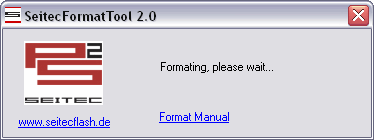
6. Wait until the formatting of your hard drive is complete. The process might take for hard-disk size up to 2 minutes. Wait in any case, the message appears on the successful format.
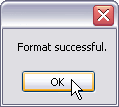
Confirm followed the successful format by clicking the OK button.
The hard disk is now fully formatted and is available as a local disk "SEITEC_P2S" in the Windows Explorer